This blog is a step-by-step guide to implementing continuous integration with Azure Pipelines. It covers YAML basics, triggers, agents, variables, tool integrations, and cost-saving techniques. Whether you’re new to continuous integration (CI) or looking to optimize your existing pipeline, this guide will help you streamline and scale your workflow effectively.
Table of Contents
Introduction
Software development is moving faster than ever, and keeping up without losing quality is a real challenge. As your projects grow and more people contribute, managing changes and ensuring everything works as expected becomes harder.
That’s where continuous integration with Azure Pipelines helps. It automatically builds and tests your code every time there’s a change, so you can catch issues early and keep your development process running smoothly.
In this guide, we’ll show you how Azure Pipelines supports continuous integration and helps you build a more efficient, reliable workflow.
What is Azure Pipelines?
Azure Pipelines is a cloud-based service from Microsoft that automates your software delivery process. It builds, tests, and deploys your code every time you make a change, helping you catch problems early and speed up development. By handling repetitive tasks, Azure Pipelines makes your workflow more efficient and your releases more dependable.
Key Benefits of Azure Pipelines
Here are the key benefits of using Azure Pipelines to streamline your software development and delivery process:
Automates code build, test, and deployment for faster releases
Detects bugs early to improve code quality
Supports Linux, macOS, and Windows environments
Offers both Microsoft-hosted and self-hosted agents
Enables CI/CD as code using YAML configuration
Integrates easily with GitHub and Azure Repos
Provides built-in security and compliance features
Supports parallel jobs for faster testing and deployment
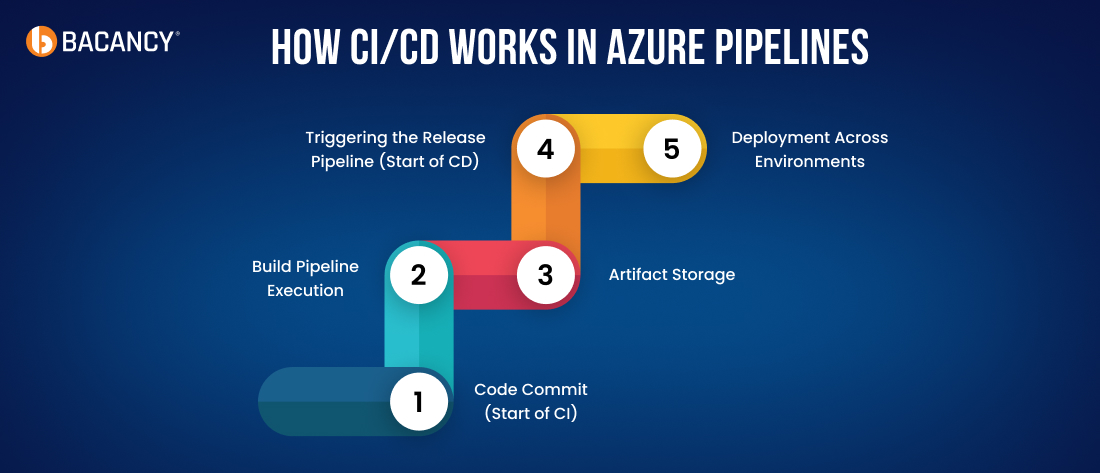
How CI/CD Works in Azure Pipelines
Now that you understand what Azure Pipelines offers, let’s look at how CI/CD actually works step by step.
Step 1: Code Commit (Start of CI)
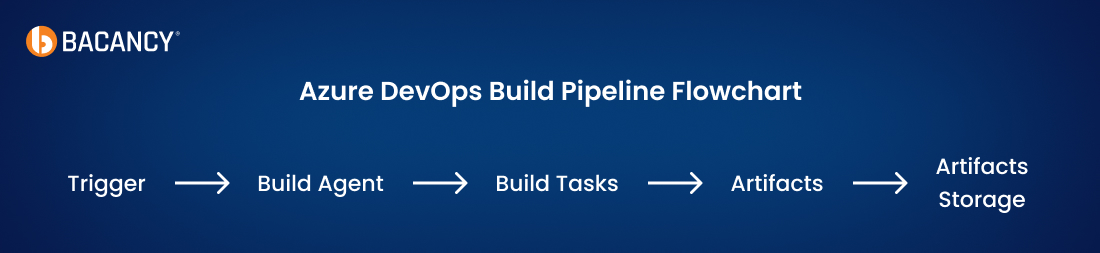
When a developer commits code to the repository, the Build Pipeline triggers, which initiates the continuous integration (CI) process.
Once the build is successful, the generated artifacts are stored in a central location. These files are ready for deployment.
Step 4: Triggering the Release Pipeline (Start of CD)
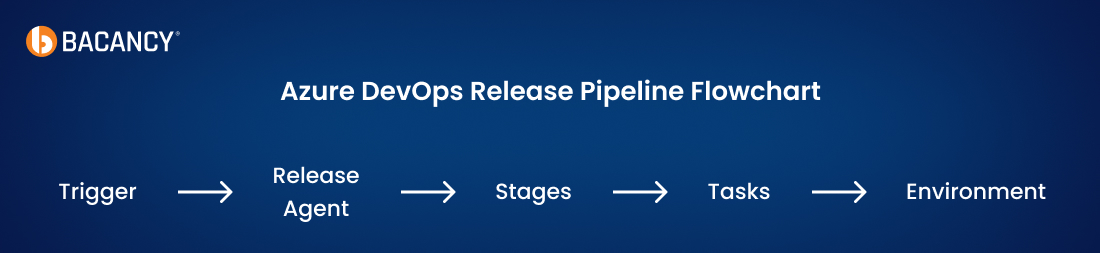
The Release Pipeline is triggered automatically or manually. It begins the continuous delivery (CD) process.
Step 5: Deployment Across Environments
The release pipeline uses release agents to deploy the application to different environments, such as:
Development
Staging
Production
Each stage may include automated tests, approval gates, and policies to ensure safe and reliable deployments.
Core Components of Azure Pipelines
To make CI/CD work smoothly in Azure Pipelines, it’s important to understand the fundamental building blocks that operate behind the scenes. These components define, control, and manage every part of your automation process, from writing code to deploying it.
1. Stages, Jobs & Steps
Pipelines are structured in a hierarchy:
Stages: Logical groupings like Build, Test, or Deploy.
Jobs: Groups of steps that run on an agent.
Steps: The smallest unit, like a command or script.
This modular breakdown offers flexibility and control over execution order and environment handling.
2. Agent Pools
Agents are the compute infrastructure (VMs or containers) where jobs run.
1. Microsoft-hosted agents: These are pre-configured and maintained by Microsoft; they are great for standard workloads. 2. Self-hosted agents: Managed by your team; ideal for custom tooling, compliance needs, or private environments.
Agent pools allow parallel execution and load balancing across agents.
3. Triggers
Triggers define when a pipeline should run.
Push Trigger: Runs on code commit to a branch.
Pull Request Trigger: Initiates on PR creation or update.
Scheduled Trigger: Executes at fixed intervals (e.g., nightly builds).
Manual Trigger: Launches when initiated by a user.
Triggers ensure automation happens at the right time, without manual intervention.
4. Variables
Variables are reusable placeholders that store values used across your pipeline (e.g., environment names, paths, version numbers).
Types of variable scopes:
Pipeline level: Global usage.
Stage level: Limited to a stage.
Job or task level: Scoped to individual steps.
They help make your pipeline more dynamic, maintainable, and DRY (Don’t Repeat Yourself).
5. Artifacts
Artifacts are the output of your build process, files like binaries, installers, or Docker images, that are passed to the release pipeline for deployment. These files are stored centrally and versioned for traceability.
6. Service Connections
Service connections securely link Azure Pipelines to external services like:
Azure subscriptions: Deploy and manage cloud resources directly from your pipeline.
GitHub or Bitbucket: Access source code for automated builds and triggers.
Docker Hub: Push and pull container images for containerized workflows.
Kubernetes clusters: Deploy applications to Kubernetes environments easily.
They manage credentials securely and eliminate hardcoded secrets in your YAML.
7. Environments
Environments represent your deployment targets (e.g., Dev, QA, Prod). They help:
Track deployments and history.
Enforce policies or conditions.
Define approval gates.
Environments can also run deployment strategies like blue/green or canary releases.
8. Approvals & Checks
These provide safeguards during deployments:
Approvals: Manual confirmation is required before moving to the next stage.
Checks: Automate validation (e.g., health checks, successful test results) before allowing promotion to the next environment.
Two Key Types of of Azure DevOps Pipelines
The pipeline is the heart of Azure DevOps automation. It defines the entire CI/CD workflow using YAML or a visual editor.
2. Release Pipeline: Manages the deployment of those artifacts across environments.
Getting Started: CI Setup with YAML in Azure Pipelines
This section walks you through the basics of setting up CI/CD in Azure Pipelines using a YAML-based configuration, including everything from pipeline creation to automation and deployment.
Step 1: Create a New Pipeline
To get started:
Navigate to your Azure DevOps project.
Go to Pipelines > New Pipeline.
Choose your repository (GitHub, Azure Repos, etc.)
Select “YAML” and use the starter template or your custom YAML.
Step 2: Define the Sample YAML for CI
Next, define your YAML pipeline file. This sample sets up the basic structure, including trigger rules, the build environment, and key variables for your CI process.
Looking to implement Azure Pipelines the right way?
Hire DevOps developers with hands-on expertise in YAML, CI/CD automation, and Azure DevOps best practices.
Step 3: Add Build and Deploy Stages
With the pipeline base in place, now define your build and deployment stages. This section compiles your app, runs tests, and deploys it to an Azure Web App.
To enable your pipelines to interact with external systems like Azure, GitHub, Docker, or Kubernetes, you need to configure service connections. These act as secure bridges between your pipeline and the tools it needs to access.
As shown in the last step, we used a Service Connection to allow the pipeline to access external services like:
Azure Resource Manager: For Azure deployments
GitHub: For GitHub integration
Docker Registry: For container operations
Kubernetes: For K8s deployments
With service connections in place to link your pipeline to external tools and platforms, the next step is choosing how to define your pipeline, using YAML or the Classic (visual) editor. Let’s compare both approaches to help you decide.
Step 5: Select Between YAML vs. Classic Pipelines
While YAML pipelines offer version control, flexibility, and automation through code, Azure DevOps also provides a user-friendly visual (Classic) editor. Here’s a quick comparison to guide your decision.
Feature
YAML Pipelines
Classic Pipeline (UI-Based)
Setup Method
Written as code in .yaml files
Configured using a visual drag-and-drop UI
Storage
Stored in the code repository
Stored within the Azure DevOps project
Version Control
Stored in the code repository
Limited version control
Flexibility
Highly customizable and reusable
Less flexible; manual adjustments needed
Best For
Experienced DevOps teams and automation
Beginners or teams new to CI/CD
Maintainability
Easier to track and maintain changes
Changes need to be made through the UI
CI/CD as Code
Yes
No
Learning Curve
Steeper (requires YAML knowledge)
Easier to start with
Once your pipelines are running, it’s important to monitor their performance and resolve issues efficiently. Azure DevOps provides analytics, logging, and diagnostic tools to help with this.
Step 6: Use Pipeline Analytics
After your pipeline is set up and running, it’s crucial to measure how well it’s performing. Azure DevOps provides built-in analytics to help you assess success rates, execution times, and more.
Metric
What It Measures
Why It Matters
Pipeline Success Rate
Percentage of successful runs
Higher rates mean stable code and fewer failures.
Execution Time
Time taken to complete a pipeline
Shorter times improve feedback speed and efficiency.
Test Pass Rate
Percentage of tests passed
Indicates code reliability and testing effectiveness.
Deployment Frequency
How often are releases deployed
Frequent deployments mean faster delivery to users.
Step 7: Enable Logs & Diagnostics
When issues arise in your pipeline, diagnostics and logging are essential for troubleshooting. Azure Pipelines allows you to capture debug messages and warnings directly within your build or release process. Here’s how you can do it.
There are some common debugging techniques that we can use to debug any issues:
Enable system diagnostics
Use pipeline variables for debugging
Check agent capabilities
Review service connection permissions
Step 8: Third-party Extensions for CI in Azure Pipelines
To further extend your CI capabilities, Azure Pipelines supports integration with third-party tools like SonarQube, Slack, and Jira. These tools help with everything from code quality checks to real-time notifications and task tracking.
Tools
How They Enhance CI in Azure Pipelines
SonarQube
Analyzes code quality and detects bugs, vulnerabilities, and code smells.
WhiteSource
Scans for open-source security risks and license compliance.
Slack
Sends pipeline notifications to team channels for quick updates.
Jira
Links work items and tracks progress directly from pipeline runs.
Step 9: GitHub Integration
Azure Pipelines works seamlessly with GitHub, allowing you to trigger builds automatically on every push or pull request. This ensures continuous integration happens as soon as code changes.
Here’s a basic YAML snippet to configure GitHub triggers:
yaml
trigger:
  branches:
    include:
    - main
pr:
  branches:
    include:
    - main
trigger: Runs the pipeline when changes are pushed to the main branch. pr: Starts the pipeline on pull requests targeting main.
You can also connect GitHub directly to Azure DevOps through OAuth or a service connection, making it easy to manage permissions and access.
Step 10: Azure Integration
Finally, connect core Azure services to your pipeline for enhanced security, real-time monitoring, and seamless infrastructure provisioning, all directly managed within Azure DevOps. You can achieve this effectively by using Azure integration services, which help simplify and automate the connection between your CI/CD pipeline and essential Azure tools.
Service
Purpose
Azure Key Vault
Securely store and manage secrets used in builds and releases.
Azure Monitor
Gain insights into pipeline and application performance post-deployment.
Azure Resource Manager
Provision and manage Azure infrastructure directly from pipelines.
By combining YAML pipelines, service connections, analytics, and third-party tools, Azure Pipelines becomes a powerful CI/CD solution. This guide provided a hands-on path to implementing continuous integration with Azure Pipelines, helping you build a flexible, secure, and efficient workflow for modern software delivery.
How to Keep Pipeline Costs in Check
As your usage grows, it’s smart to optimize cost and performance. Here are some best practices to keep your pipelines efficient without overspending.
1. Agent Usage
Use Microsoft-hosted agents efficiently by releasing them as soon as tasks are completed.
Consider self-hosted agents for frequent or resource-heavy workloads to save long-term costs.
Optimize the number of parallel jobs to avoid unnecessary resource consumption.
2. Pipeline Efficiency
Use shallow clones to reduce fetch time by downloading only recent commits.
Cache dependencies to avoid downloading the same packages in every run.
Minimize artifact sizes to lower storage and transfer costs.
Apply conditions to skip unnecessary steps when they’re not needed, saving runtime and resources.
Streamline Your Azure Workflows Today!
Azure DevOps Pipelines is a powerful and flexible tool for setting up continuous integration with Azure Pipelines and full CI/CD workflows. By following the right steps and best practices, you can create efficient pipelines that improve your team’s productivity and code quality.
Designing a pipeline is an ongoing process. Start with a simple setup, monitor the results, and add complexity as your team becomes more confident with the tools. Also, Azure consultants can accelerate this journey, helping you avoid common pitfalls and ensuring your pipelines align with your infrastructure and goals.
Success comes from being consistent, keeping track of performance, and making regular improvements. As your application and team grow, your pipelines should grow with them.
Frequently Asked Questions (FAQs)
Yes, Azure Pipelines natively supports GitHub integration, allowing automatic triggers on code pushes or pull requests for seamless CI/CD execution.
Azure Pipelines offers a free tier with Microsoft-hosted agents and limited parallel jobs. Paid plans are available for larger teams and advanced workloads.
Azure Pipelines supports a wide range of languages, including .NET, Java, Node.js, Python, PHP, and Go, and platforms, including Windows, Linux, and macOS.
Service connections securely link Azure Pipelines to external services (like Azure, Docker Hub, GitHub) and manage credentials without exposing secrets in your code.
Reynal Dsouza
Tech Geek at Bacancy
Tech-focused writer specializing in innovation, AI, and cloud frameworks.