Last Updated on August 22, 2025
Last Updated on August 22, 2025
Quick Summary
This guide explains how to deploy LLMs using Azure ML efficiently. You’ll learn how to set up your workspace, register models like GPT-2 or LLaMA, create a scoring script, configure the environment, and deploy a real-time API that generates text instantly.
Table of Contents
Large Language Models (LLMs) have quickly moved from research labs into real-world applications. You can now create powerful AI solutions in days, whether it’s a chatbot that understands customer queries, tools that generate marketing content, or a code assistant that helps developers write code.
But the real challenge is to make these models reliable, scalable, and Production-ready from within your development environment.
That’s where Azure Machine Learning (Azure ML) comes in. It provides a fully managed platform that simplifies deployment, scaling, monitoring, and integration so that you can focus on innovation instead of infrastructure.
In this guide, our Azure developers at Bacancy walk you through the entire process of how to deploy LLMs using Azure ML, from setting up your workspace to making your model accessible as a real-time API for your applications.
Follow this step-by-step to take a model like GPT-2 from your laptop to a real-time, production-ready API on Azure ML. We’ll set up the workspace, prepare the compute, register the model, create the scoring code and environment, deploy an endpoint, and test it.
Before you begin, make sure you have the following in place:
pip install azure-ai-ml
az extension add -n ml
An Azure ML Workspace is your managed environment where you store models, datasets, environments, and deployment endpoints.
1. Sign in to the Azure Portal.
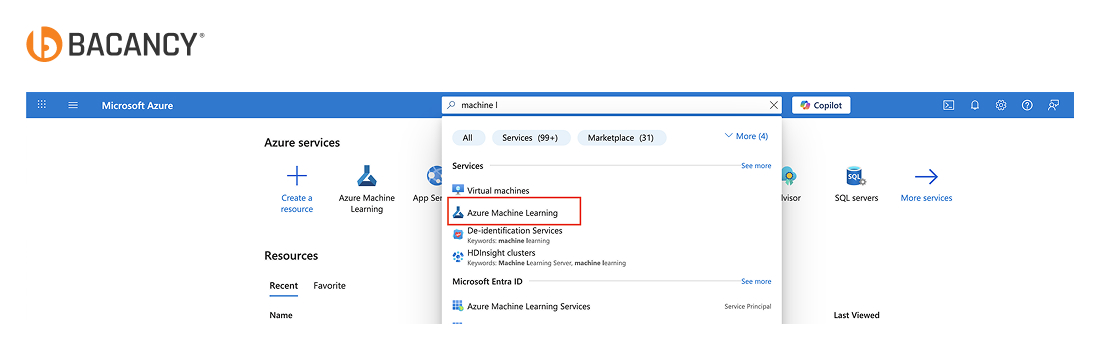
2. In the search bar, type “Machine Learning” and select it.
3. Click Create.
4. Fill in the details:
llm-workspace (pick something meaningful).5. Click Review + create, then Create.
6. Once deployment finishes, open the workspace resource and click Launch Studio to enter the Azure ML Studio interface.
Azure ML Studio is the web-based interface where you manage models, datasets, compute resources, and deployments.
1. From your workspace Overview page in the Azure Portal, click Launch Studio.
2. It opens Azure ML Studio in your browser.
3. Sign in with your Azure account if prompted.
A compute cluster provides the processing power needed to run your model reliably.
1. In Azure ML Studio, go to Manage → Compute.
2. Under Compute clusters, click + New.
3. Configure the cluster:
4. Click Create
Tip: CPU VMs can work for very small models, but expect slower response times compared to GPU-enabled instances.
Registering your model creates a versioned asset in Azure ML, making it easy to deploy and track updates. You can use a Hugging Face model (GPT-2, LLaMA, or BERT) or link to an OpenAI-based endpoint.
1. In Azure ML Studio, go to “Models”.
2. Click Register model.
3. Fill in the details:
Tip: For Hugging Face models, you can download them locally first or use a direct storage link for faster registration.
Partner with a trusted LLM development company to build, deploy, and scale models that deliver real-world results.
The scoring script loads your model once at startup and processes predictions for each incoming request.
from transformers import pipeline
import json

def init():
    global pipe
    pipe = pipeline("text-generation", model="gpt2")

def run(data):
    try:
        input_text = json.loads(data)["text"]
        result = pipe(input_text, max_length=100)
        return result
    except Exception as e:
        return str(e)
Steps in Azure ML Studio:
1. Go to Assets → Files.
2. Upload score.py here, or include it in your deployment package when creating the endpoint.
Tip: Keep your script lightweight and ensure it only loads the model in init(). This prevents unnecessary reloading and speeds up inference.
The inference environment contains all the runtime dependencies your model needs to run in Azure ML.
In Azure ML Studio:
1. Go to Environments → Click Create.
2. Configure:
llm-envname: llm-env
dependencies:
- python=3.8
- transformers
- torch
- pip:
- azureml-defaults
4. Click Create.
Tip: Always pin Python and library versions to avoid unexpected behavior when rebuilding environments in the future.
This step creates a secure HTTPS endpoint that your applications can call for predictions.
In Azure ML Studio:
1. Go to Endpoints → Click Create Endpoint → Real-time endpoint.
2. Configure:
llm-endpoint3. Attach:
llm-env)score.py)4. Click Deploy.
Tip: Start with a single instance for testing. You can scale out later based on latency and traffic needs.
Make sure the endpoint responds correctly before integrating it into production.
In Azure ML Studio:
1. Open your deployed endpoint.
2. Click Test.
3. Input sample JSON:
{
  "text": "Hello From Bacancy"
}
4. Click Test Invocation and check the response in the output panel.
Tip: Save the endpoint URL and access key; you’ll need them for API calls from external apps.
We hope this Azure Machine Learning LLM tutorial helped you understand how to deploy LLMs efficiently. You can now confidently set up your workspace, register models, and create real-time API endpoints.
Deploy LLMs using Azure ML easily, transforming your trained models into secure, scalable, and production-ready APIs in just a few straightforward steps.
From setting up your workspace and registering the model to creating an inference environment and testing the endpoint, this process ensures your LLM is fully functional, secure, and easy to integrate.
You can also opt for end-to-end Azure support services to gain ongoing monitoring, performance tuning, and proactive issue resolution, ensuring your AI deployments remain reliable, optimized, and continuously delivering business value.
Azure ML offers two main deployment options:
Performance can be improved by selecting GPU-enabled compute targets, using optimized model formats (FP16/INT8 quantization), and leveraging multi-GPU setups with frameworks like Hugging Face Accelerate. Azure ML also allows autoscaling to match inference demand and monitor system metrics for efficiency.
If you have a custom-trained LLM in PyTorch, TensorFlow, or ONNX, you can absolutely deploy it on Azure ML. Simply upload your model, set up the inference environment with the required dependencies, and deploy it to a managed endpoint for real-time or batch use.

Tech Geek at Bacancy
Tech-focused writer specializing in innovation, AI, and cloud frameworks.
MORE POSTS BY THE AUTHOR
Your Success Is Guaranteed !
We accelerate the release of digital product and guaranteed their success
We Use Slack, Jira & GitHub for Accurate Deployment and Effective Communication.