This blog walks you through how to upgrade the .NET Framework safely and efficiently. From reviewing your current version to avoiding common upgrade pitfalls, you will get a clear, step-by-step guide to upgrading .NET Framework and modernizing your applications.
Table of Contents
Introduction
Most apps run smoothly – until an unsupported .NET version silently blocks new features, security, patches, or cloud deployments. Once the framework runtime stops receiving fixes, your applications become vulnerable to security risks, unpatched bugs, and operational issues. In fact, Microsoft itself warns that unsupported .NET versions no longer get updates, which may leave your systems exposed.
Upgrading .NET framework to the latest version doesn’t need to be stressful. In this blog, we have covered everything you need to know about how to upgrade the .NET Framework. From pre-upgrade checklist to step-by-step instructions, our guide ensures a smooth transition to the latest .NET version without hampering your applications.
Why Should You Consider Upgrading .NET Framework?
Upgrading .NET to latest version is necessary when an outdated version hampers development workflow and business innovations. The older version often blocks library updates, creates cloud deployment issues, compute scaling, and raises the effort required to implement new features reliably.
Based on our experience with Dot Net enterprise projects, here are the main reasons an upgrade becomes essential.
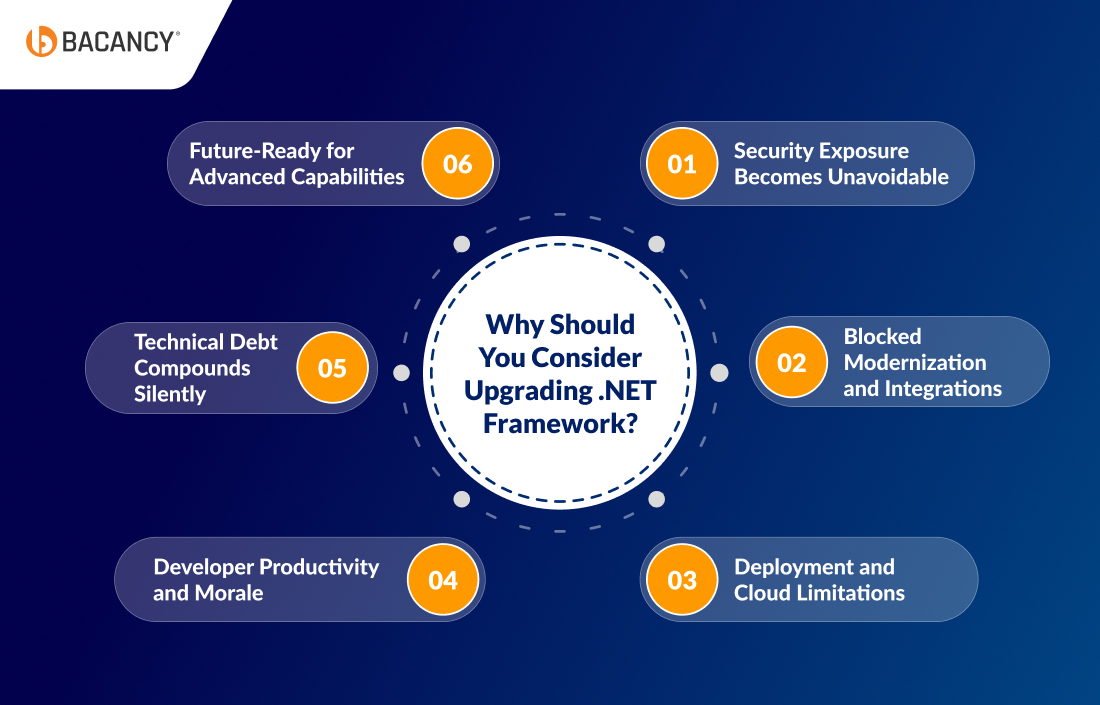
1. Security Exposure Becomes Unavoidable
Once a .NET version reaches the end of support, every new vulnerability becomes your responsibility. Our team witnesses security stalls approving releases, audits raise red flags, and compliance reviews take longer. At that point, staying on the same version becomes a business risk, not a technical choice.
2. Blocked Modernization and Integrations
On several projects, teams struggled to adopt modern libraries or integrate with cloud services because their .NET version didn’t support them. We had clients attempting to implement microservices or new APIs only to hit invisible walls.
However, the workarounds were possible but slowed development and made modernization and integration more difficult.
3. Deployment and Cloud Limitations
We have observed applications that ran perfectly in development but caused repeated CI/CD failures or deployment delays in the cloud. Older .NET versions often lack support for containers, automated pipelines, or modern cloud features.
Upgrading eliminated these bottlenecks for our clients, allowing smooth deployments and faster release cycles.
4. Developer Productivity and Morale
One of the less obvious issues we have noticed is the human side. Developers get frustrated while working with outdated frameworks because they cannot use modern IDE features, debugging tools, or automated code checks.
As a result, our team used to spend more time on tackling the framework rather than working on the functionality. Upgrading .NET Framework improves productivity and keeps the team engaged to deliver the long-term success result.
5. Technical Debt Compounds Silently
There have been projects where a few framework versions were skipped, which turned the next upgrade into a massive and risky effort. It creates compatibility gaps, failed dependencies, and hidden regressions that accumulate over time.
In the end, incremental upgrades prevent these problems, keeping applications maintainable and saving months of unnecessary testing and fixes.
6. Future-Ready for Advanced Capabilities
Finally, if your business plans include AI and machine learning, analytics, or cloud-native services, it sticks with an old framework that can force a complete rewrite later. On projects, we have managed and moved to the latest .NET version. It allows your teams to adopt advanced tools without rewriting critical parts of the application, which saves both time and cost.
How to Check Your Current .NET Version?
Before you go for upgrading .NET framework, the first step is to know your application uses which .NET framework/version. It helps you plan the upgrade path, spot potential compatibility issues, and avoid unexpected deployment.
Here’s how you can quickly check your .NET version:
Enter ProductVersion to view the installed version.
By confirming your current version first, you can ensure that your upgrade process is smooth and that the application continues running securely and efficiently.
Break Free from Outdated .NET Apps
Hire .NET developers from us to modernize your system, upgrade your framework seamlessly, and ensure zero downtime while boosting performance, security, and scalability for your applications.
A Step-by-Step Guide to Upgrade .NET 9 to .NET 10
Upgrading from .NET 9 to .NET 10 is more than a routine version bump; it’s a strategic modernization move that provides stronger performance, enterprise-grade security, and LTS support.
For organizations building mission-critical systems, this migration helps you to enhance future applications and gain a measurable operational workflow.
To ensure a seamless and low-risk .NET 10 migration, we recommend following a structured, proven migration approach, the same methodology trusted by our teams to upgrade large-scale .NET applications.
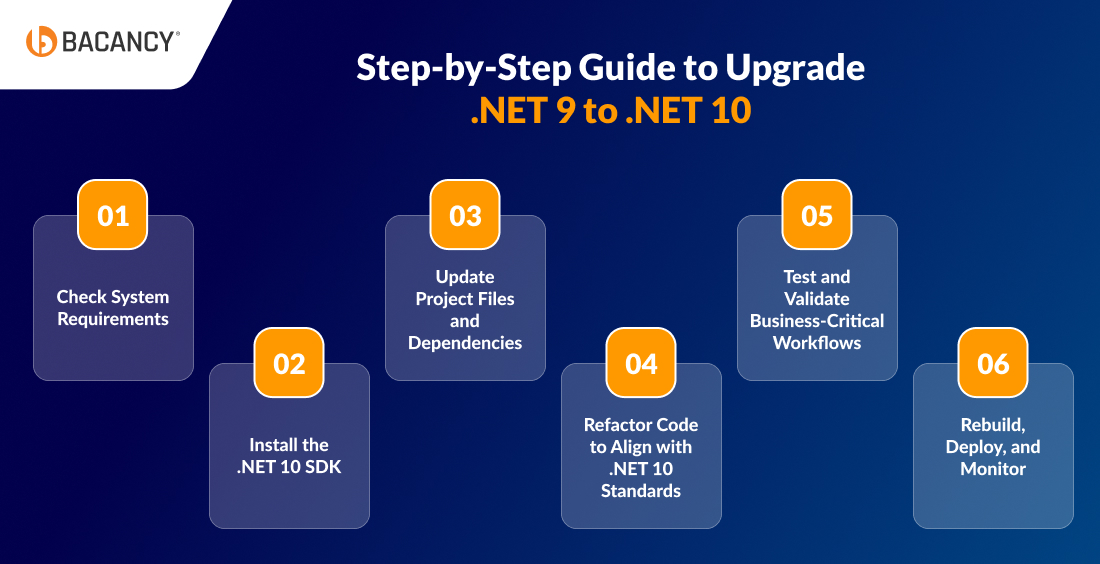
Step 1: Check System Requirements
A successful .NET version upgrade starts with a solid foundation. Before upgrading, ensure your development, build, and deployment environments are fully ready for .NET 10. Moreover, if you skip this step, it can lead to avoidable delays and compatibility issues later in the process.
System prerequisites:
Windows 10/11, latest macOS version, or a supported Linux distribution
Visual Studio 2026 (latest update) or JetBrains Rider
Docker (recommended for modern, containerized deployments)
Verification that all third-party libraries and internal SDKs support .NET 10 upgrade
To quickly audit the .NET SDKs installed on your system, run:
dotnet --list-sdks
Step 2: Install the .NET 10 SDK
With prerequisites confirmed, install the .NET 10 SDK from Microsoft’s official distribution. Standardizing your team on the latest SDK ensures consistent builds, predictable behavior, and access to the newest runtime optimizations.
After installation, validate the setup with:
dotnet --version
A successful installation returns a version number like 10.0.x, confirming that your environment is ready for .NET 10 upgrade.
Step 3: Update Project Files and Dependencies
This step officially transitions your application to the .NET 10 ecosystem and is where most teams realize immediate value with minimal effort.
1. Modify the Target Framework in the .csproj File
Update your project file to target .NET 10 migration.
Before (on .NET 9):
<TargetFramework>net9.0</TargetFramework>
After (upgrading to .NET 10):
<TargetFramework>net10.0</TargetFramework>
This single change enables your application to take advantage of .NET 10’s performance improvements, security hardening, and long-term support guarantees.
For phased rollouts or shared libraries, you can temporarily multi-target:
Keeping dependencies current is essential for a stable and supportable upgrade. Clear cached packages, restore dependencies, and identify outdated libraries using:
This step minimizes runtime risks and ensures compatibility with the .NET 10 runtime.
Step 4: Refactor Code to Align with .NET 10 Standards
Modernizing your codebase alongside the framework upgrade maximizes ROI. .NET 10 introduces refinements that enhance maintainability, readability, and long-term scalability.
1. Identify and Replace Deprecated APIs
Run the .NET Upgrade Assistant to proactively identify deprecated or soon-to-be-removed APIs:
dotnet upgrade-assistant analyze
This automated analysis highlights risk areas and recommends modern alternatives, which reduces the guesswork and manual review.
Common modernization opportunities include:
Updating authentication and Identity implementations
Aligning Entity Framework Core configurations with current best practices
Refining ASP.NET Core middleware and startup pipelines
2. Adopt C# 14 for Cleaner, More Maintainable Code
.NET 10 ships with C# 14, which allows the language features that reduce boilerplate and accelerate development. The primary constructors simplify class definitions and improve clarity.
Before:
public class User
{
public string Name { get; }
public int Age { get; }
public User(string name, int age)
{
Name = name;
Age = age;
}
}
After (C# 14):
public class User(string name, int age)
{
public string Name { get; } = name;
public int Age { get; } = age;
}
Collection expressions further streamline common code patterns.

var numbers = [1, 2, 3, 4, 5];
These enhancements reduce technical debt and improve long-term code health.
Step 5: Test and Validate Business-Critical Workflows
Testing is where you will understand where the development is leading. After upgrading, validate not just correctness, but also performance and stability under real-world examples.
1. Run Automated Tests
Execute your full test suite:
dotnet test
Any failures should be addressed immediately to ensure production readiness.
2. Measure Performance Gains
.NET 10 introduces runtime optimizations that often translate into tangible speed and efficiency improvements. Here, benchmarking helps quantify these gains.
Install BenchmarkDotNet:
dotnet add package BenchmarkDotNet
Run targeted benchmarks to compare pre-and post-migration performance and validate ROI.
Step 6: Rebuild, Deploy, and Monitor
With validation complete, you need to prepare your application for production with the following steps.
1. Rebuild and Publish
Generate optimized binaries using:
dotnet publish -c Release -o ./publish
2. Deploy Efficiently
Deploy to your target environment, whether it is cloud, on-premises, or hybrid.
For containerized workloads, update your Docker base image to .NET 10:
FROM mcr.microsoft.com/dotnet/aspnet:10.0
WORKDIR /app

ENTRYPOINT ["dotnet", "YourApp.dll"]
Rebuild and deploy the container:
docker build -t yourapp-dotnet10 .
docker run -d -p 5000:80 yourapp-dotnet10
.NET 9 vs .NET 10: Key Differences
Aspects
.NET 9
.NET 10
Release Type
Standard Release
Long-Term Support (LTS)
Platform Support
Cross-platform, Windows, Linux, macOS (upto certain limitations)
Expanded cross-platform support, including the latest OS version and cloud platforms
APIs & Libraries
Updated libraries and APIs from .NET 8
Improved libraries and APIs streamline for reliability and modern workloads
Performance
Enhanced runtime and memory management over .NET 8
Further runtime optimizations and reduced memory usage for large-scale apps
Security Updates
Regular support until the next version
Extended security fixes and updates due to LTS, recommended for production-critical apps
Upgrade Recommendation
Suitable for teams not ready for LTS yet
Recommended for production apps requiring stability, performance, and long-term support
Future-Ready Features
Support modern workloads and emerging tech
Adds better cloud-native capabilities, AI-ready frameworks, and next-gen workload optimizations
.NET 9 is a Standard Term Support (STS) release, supported for a shorter period and designed to deliver faster innovation.
.NET 10 is a Long Term Support (LTS) release, supported for several years, making it the preferred choice for production and enterprise systems.
For teams planning stability, predictable updates, and long‑term maintenance, .NET 10 migration is the next step.
Need Expert Support in Migrating from .NET 9 to .NET 10?
Leverage our .NET migration services to migrate confidently with expert-led planning and execution.
What Has Changed from .NET 9 to .NET 10?
.NET 10 doesn’t radically change how you write .NET applications; instead, it refines, optimizes, and strengthens the foundation laid by .NET 9.
Better garbage collection behavior under high load
Faster LINQ operations and optimized async paths
Enhanced performance on ARM64 and cloud‑native workloads
These changes made .NET 9 a strong choice for modern APIs and microservices.
.NET 10 builds on these optimizations with:
More aggressive JIT inlining and method devirtualization
Reduced allocations in common framework APIs
Improved NativeAOT support for faster startup and lower memory usage
Hardware‑accelerated optimizations for modern CPUs
For applications already optimized on .NET 9, upgrading to .NET 10 often results in incremental but measurable performance gains with no code changes.
2. Runtime, Libraries, and API Enhancements
.NET 9 introduced:
New LINQ helpers like CountBy and AggregateBy
Enhancements in System.Text.Json
Improved cryptography and regex performance
Better diagnostics and logging hooks
.NET 10 further expands the base class libraries with:
More configurable and strict JSON serialization options
Improved networking APIs and HTTP handling
Enhancements to globalization and Unicode support
Additional cryptography primitives and security hardening
These changes improve reliability, correctness, and observability, especially in distributed and compliance‑sensitive systems.
3. SDK, Tooling, and Developer Experience
.NET 9 improved the developer workflow with:
Smarter DotNet CLI behavior
Improved test execution and parallelization
Better workload management
.NET 10 refines the SDK experience even further:
More consistent .NET test and build outputs
Improved container and publish workflows
Better support for NativeAOT and self‑contained deployments
Enhanced CLI discoverability and shell completion
For teams using CI/CD pipelines, these changes translate to more predictable builds and faster feedback loops.
4. Cloud‑Native and Container Improvements
Both .NET 9 and .NET 10 continue Microsoft’s strong focus on cloud‑native development. This covers:
Smaller container images
Improved observability with OpenTelemetry
Faster startup times for containerized workloads
In .NET 10, these improvements are more polished and stable, which makes it an ideal LTS foundation for Kubernetes‑based systems and .NET microservices architecture.
Tips to Consider for .NET Version Upgrade: A Quick Checklist
☐ Identify the current or latest .NET framework version used across all applications.
☐ Review application architecture and note deprecated APIs or legacy components.
☐ Audit all NuGet packages and third-party libraries for version compatibility.
☐ Confirm target .NET version support for hosting, OS, and cloud environment.
☐ Back up source code, databases, and configuration files.
☐ Set up a staging or test environment that mirrors production.
☐ Update dependencies before upgrading the framework itself.
☐ Validate CI/CD pipelines, build scripts, and deployment workflows.
☐ Run functional, regression, and performance tests.
☐ Monitor logs, runtime behavior, and error patterns after deployment.
☐ Document changes, fixes, and upgrade decisions for future reference.
How Bacancy Helps You Upgrade to Latest NET Version?
For upgrading .NET framework, you need to require more than a version change because it is crucial for performance and security. It is also a clear path for dependency alignment, risk control, and deep understanding of how your application behaves in the production environment.
As an experienced .NET development company, Bacancy helps you to assess your existing framework, identify hidden compatibility gaps, and plan upgrades to avoid disruption. We focus on preserving business logic, stabilizing integrations, and ensuring that performance, security, and deployment workflows are enhanced after the upgrade.
Our approach covers everything, from crucial audits and cloud readiness checks to CI/CD alignment and post-upgrade validation. Whether your application operates on legacy infrastructure or modern cloud platforms, we ensure the upgrade support provides you with maintainability, scalability, and long-term growth.
With Bacancy, .NET 9 to .NET 10 migration becomes a controlled, predictable process instead of a risky technical leap.
Frequently Asked Questions (FAQs)
Upgrading the .NET Framework means moving your application to a newer version of the framework. It ensures better security, improved performance, access to the latest features, and compatibility with modern tools and libraries.
You can check your current version through the Control Panel, registry editor, or by running a simple command in the command prompt. To know your version, the first step is to check the upgrade to .NET Framework.
Download the latest .NET Framework version from Microsoft and follow the installation steps. You need to make sure that your application has back up and verify compatibility before proceeding ahead.
An outdated .NET framework can expose your applications to security vulnerabilities, bugs, and compatibility issues with newer software or cloud services.
Yes, by following proper pre-upgrade checks, updating dependencies, and testing thoroughly, you can proceed to upgrading .NET Framework safely without affecting your application’s functionality.
Most applications are compatible, but legacy apps may require code adjustments or dependency updates. You can always test in a staging environment before deploying.
Upgrading .NET Framework can take 1- 3 months or more. The timeline depends on application size, dependencies, and testing requirements. Small projects may take a few hours, while enterprise apps can take days or weeks.
Hardik Patel
Technical Lead at Bacancy
Veteran .NET developer delivering innovative, high-performance, and client-focused solutions.