Imagine this:
You’ve just joined a new Angular project. You open the code, run ng serve, and… boom! – the terminal screams something about “This workspace requires Angular CLI version X, but your version is Y”.
Now what?
You realize you don’t even know which version you’re running!
That’s where knowing how to check your Angular CLI version both globally and locally becomes a developer survival skill.
Let’s walk through it from the very beginning.
What is Angular CLI?
Think of Angular CLI as your personal butler for Angular development.
It sets up your project, keeps things organized, and even serves you (literally with ng serve) when you’re hungry for real-time changes.
Formally, Angular CLI (Command Line Interface) is a command-line tool that helps developers create, build, test, and maintain Angular applications. It takes care of configurations, file structures, and best practices so you can focus on writing code.
Benefits of Using Angular CLI
Using Angular CLI offers several advantages:
- Quick Project Setup – Easily create a new Angular project with all configurations ready.
- Consistent Project Structure – Follows best practices and maintains uniformity across applications.
- Faster Development – Commands like ng generate and ng serve speed up development.
- Built-in Testing – Easily run unit and end-to-end tests with a single command.
- Optimized Builds – Create production-ready builds with code minification and bundling.
- Version Management – Quickly check or update your CLI and project versions.
Why Developers Love Angular CLI
Here’s why most Angular developers never code without it:
- Quick Project Kickoff – Create a ready-to-code Angular project in seconds.
- Consistent Structure – Your project will always look neat and organized.
- Speed Boost – Generate components, services, modules, all in one command.
- Built-in Testing – No need to set up testing tools manually.
- Production Builds – Easily create optimized, minified code for deployment.
- Version Awareness – Helps you stay in sync with the right Angular CLI version.
Global vs Local Angular CLI – The “Two Worlds”
Before we check versions, you need to know there are two CLI worlds:
- Global CLI – Installed on your computer and accessible everywhere.
- Local CLI – Installed inside a specific project (via node_modules) and might be different from the global one.
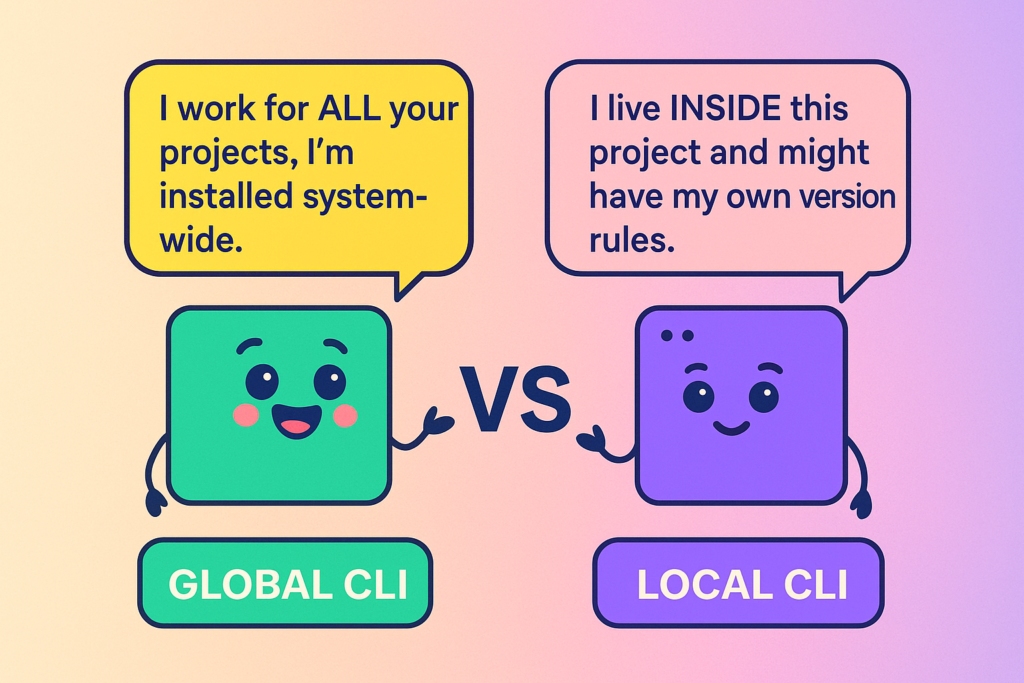
Story twist: Sometimes your global CLI says, “I’m version 17,” but your local CLI replies, “Well, I’m version 16.” That’s when compatibility drama begins.
How to Check Angular CLI Version
1. Checking Global Angular CLI Version
Your global version is like your developer passport, it’s the one you carry around everywhere.
Run this command in your terminal:
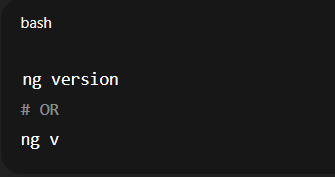
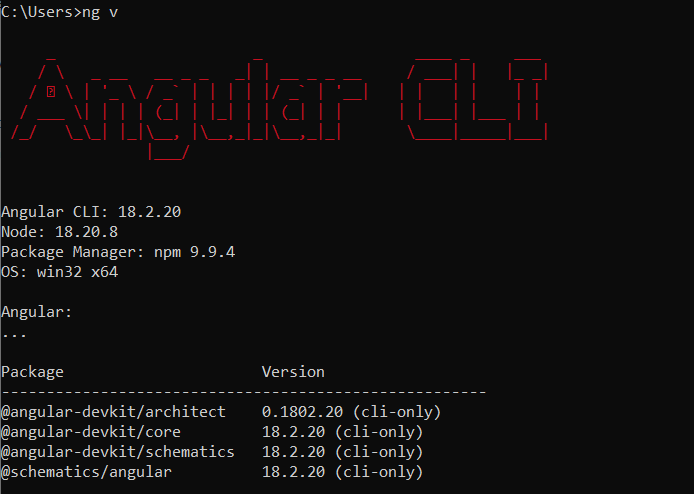
If ng is recognized globally, you’ll see the Angular CLI version along with other Angular-related package versions.
You’ll see your global CLI version along with Node.js, OS details, and more.
Want only the CLI version without the extra Angular framework details?
Using npm (global version)

2. Checking Local Angular CLI Version
Your local version is the one your project trusts.
Steps:
1. Go inside your project folder:

2. Run
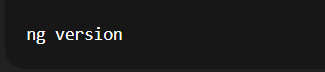
Or

3. You can also peek into package.json:
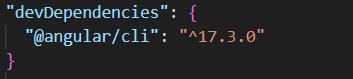
3. No Global CLI? No Problem!
If you don’t have the global CLI but want to check your project’s version:
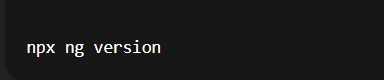
npx uses the project’s local CLI without needing a global install.
4. Updating Angular CLI
Once you know your version, you might want to upgrade.
– Update Global CLI :

– Update Local CLI:

Quick Summary Table
| Scope | Command |
| Global | ng version or npm list -g @angular/cli –depth=0 |
| Local | ng version (inside project) or npm list @angular/cli –depth=0 |
| Without global install | npx ng version |
Closing the Terminal
And there you have it, no more guessing games with your Angular CLI version. Whether it’s your global setup or a project’s local dependency, you now know exactly where to look and how to check it.
Remember, version mismatches are like surprise bugs, they always show up when you least expect them. By making version checks a habit, you keep your development smooth, your builds predictable, and your team in sync.
So, go ahead, type that command, check your version, and keep coding with confidence. Your CLI butler will thank you.

Need Help With Angular Development?
Work with our skilled Angular developers to accelerate your project and boost its performance.
Hire Angular Developers


![Angular [disabled]](https://assets.bacancytechnology.com/qanda/wp-content/uploads/2025/05/08073558/Angular-disabled.jpg)