 Bacancy Global






November 4, 2026
Hidden Costs of Healthcare AI Agents You Must Know
Explore the 7 hidden costs of healthcare AI agents, including EHR integration, compliance, security, and maintenance, plus TCO and ROI.
Read More
When any healthcare app creates notes, forms, test results, or other patient information, getting that data into an Electronic Health Record (EHR) can be another challenge. EHR write back can help you solve this challenge by sending information from the app directly to the patient’s chart, reducing the need for manual entry. The setup depends on the EHR, data you need to send, and where it needs to appear in the chart. This guide covers the key things you need to know about EHR write back and helps you choose the approach that fits your app.
Your healthcare app can produce good notes, risk scores, and patient forms. But if a clinician has to retype each one into the EHR, they will soon stop using it.
Getting that data into the patient chart is harder than it looks. Every EHR vendor handles it differently, and every health system adds its own approval and security steps. A write-back that goes to the wrong patient, or lands in a folder nobody checks, can cause real problems for care.
This guide explains how EHR writeback works, what data you can send, and which method suits your app. It also covers what each major EHR supports, how to build it step by step, and what it costs.
But before we get into what fits your app best, let's cover the basics.
EHR write back is the process of sending data from an outside app back into an electronic health record (EHR).
For example, a patient may complete a health questionnaire in your app. Your app can then send the responses to the patient’s EHR, where the care team can review them as part of the patient’s record.
A read integration pulls data out of the EHR. Write-back does the opposite: your app sends new or updated information into it. You may also hear it called EHR writeback or bidirectional integration. The idea is the same: data moves both ways. There are two types of EHR write-back:
1. Document write-back: The app adds information to the EHR as a note or document that a clinician can read.
2. Discrete write-back: The app adds information to specific fields in the EHR, such as blood pressure, weight, or PHQ-9 score.
Healthcare apps can create useful information such as AI-generated notes, risk scores, and patient-reported data. But that information is more useful when it can reach the patient’s EHR.
Here are three common examples:
1. AI Scribes Need To Send Notes to the EHR
AI scribes listen to a patient visit and prepare a draft note. The clinician then reviews the note and makes any needed changes.
The next step is getting that approved note into the patient's chart. Without EHR writeback, the clinician or staff may have to copy and paste it into the EHR.
An August 2025 BMJ Health & Care Informatics survey of 1,003 UK GPs found that 14% already used an ambient AI scribe and 39% planned to. As adoption grows, the approved note needs a reliable path into the chart.
2. Risk Scores Need to Reach the Care Team
Healthcare apps can calculate scores for sepsis, readmission risk, or other clinical risks. But a score does little if it stays inside a separate dashboard.
EHR writeback can send the result to the EHR as an observation or another supported field. The care team can then see the result along with other patient information.
3. Patient Data Can Go Straight Into The Chart
Patients may enter information through an intake form or remote monitoring app. This can include blood pressure, blood sugar, symptoms, or questionnaire responses.
Without write-back, staff retype that data into the EHR, which can lead to typing errors.
What you can write back depends on the EHR and the type of data you want to send. The available API, the health system’s setup, and where the data needs to appear in the patient’s chart also matter.
Here are some common types of data you can send through EHR writeback:
| Data type | Common FHIR resource or HL7 message | Difficulty | Typical use |
|---|---|---|---|
| Clinical notes and summaries | DocumentReference, HL7 MDM | Low | AI visit notes, signed forms, outside reports |
| Vitals and device readings | Observation, HL7 ORU | Medium | Blood pressure, glucose, weight, and remote monitoring |
| Lab results | Observation, DiagnosticReport, HL7 ORU | Medium to high | Point-of-care or outside lab results |
| Questionnaires and screenings | QuestionnaireResponse, Observation | Medium | PHQ-9 and intake forms |
| Risk scores | Observation, Risk Assessment | Medium | Sepsis or readmission risk |
| Care plans | CarePlan | High | Goals and tasks from a chronic care program |
| Appointments | Appointment, HL7 SIU | Medium | Scheduling and appointment updates |
| Allergies and problems | AllergyIntolerance, Condition | Medium to high | Patient intake and care coordination |
| Orders and medications | ServiceRequest, MedicationRequest | High | Orders that may need clinician review |
The right choice depends on what you need the EHR to do with the data. Have a look at when to choose which:
Most teams should begin with a note or PDF. It needs one resource, DocumentReference, and clinicians read it like any other note. There are no individual fields to map, and far less to validate, though you still need the right document type for each site. Each discrete field has its own EHR code, rarely shared between systems, so every extra field slows the project. A document-only workflow can be proven at one site in weeks.
A simplified FHIR document write looks like this:
{
 "resourceType": "DocumentReference",
 "status": "current",
 "type": { "coding": [{ "system": "http://loinc.org", "code": "11506-3" }] },
 "subject": { "reference": "Patient/123" },
 "context": { "encounter": [{ "reference": "Encounter/456" }] },
 "content": [{ "attachment": { "contentType": "text/plain", "data": "<base64-encoded note>" } }]
}
When sent inline, note content is Base64-encoded, and exact fields and note types are set per site, so treat this as a pattern, not a template.
Use discrete write-back when the EHR needs to act on the value. For example, a blood pressure reading should appear in the vitals section, and a PHQ-9 score should be saved as a number so the EHR can trigger alerts and reports.
EHR read and write tasks are different from each other. The read task involves just viewing the patient’s information, while the EHR write back task involves writing back into the system, and any error may be propagated to the clinician’s workstation. That is why write-back usually means a stricter approval, more careful data mapping, and more testing than read access.
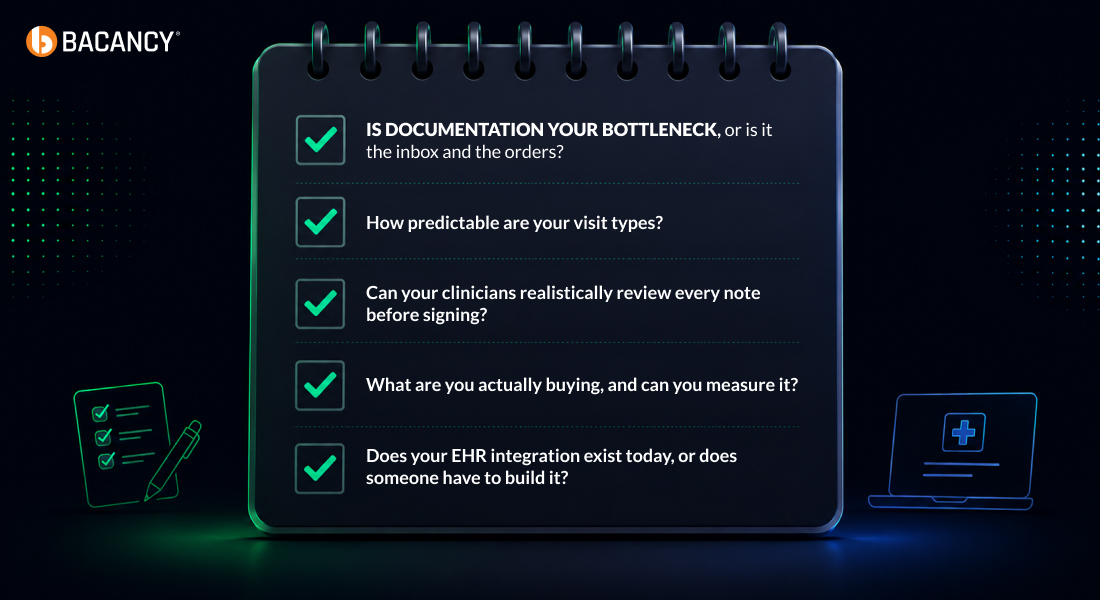
Need help managing EHR write-back approvals, data mapping, and testing?
A healthcare IT services and solutions provider can help you build a reliable integration that writes the right data to the right place in the patient record.
There are several ways to send data back to an EHR. The right choice depends on the EHR you use, the type of data you need to send, and how quickly you want to launch.
| Method | Speed To Launch | Data detail | Approval for Setup | Best for |
|---|---|---|---|---|
| FHIR R4 with SMART on FHIR | Medium | High | EHR write access and site approval | Apps that need structured data in modern EHRs |
| HL7 v2 through an interface engine | Slow to medium | High | The hospital interface team needs to set up the connection | Hospitals with existing HL7 interfaces |
| Document or PDF upload | Fast | Low, whole document | Usually simpler than structured write-back | Notes, reports, forms, and signed documents |
| Unified integration API | Fast | Medium | Depends on what the integration platform supports | Apps that need to connect to many EHRs |
| Browser automation or RPA | Fast to build | Medium | May not need a write API, but requires careful review | EHRs that do not offer a suitable write API |
Your app sends data to the EHR through a FHIR API. It can add resources like an Observation or a DocumentReference, but only if the EHR allows that write.
Read more in detail about Smart on FHIR
Your app sends HL7 messages, such as ORU or MDM, through an interface engine. The hospital's interface team usually sets up the connection and tests it.
Your app sends a PDF, report, or note to the patient's chart. This is often the easiest option when you don't need values saved in specific EHR fields.
One platform connects your app to several EHRs, so you don't build a separate connection for each. The limit is that you can only do what the platform supports for each EHR.
The tool types information into the EHR screens, the way a user would. It helps when the EHR has no usable write API. But it breaks when the screens change, and it needs regular upkeep. Don't trust the on-screen confirmation. Check that the data was actually saved in the chart. Also make sure empty inputs never overwrite existing values.
If clinicians only need to see the information, you may not need to store it in the EHR. A SMART on FHIR app or CDS Hooks can show it inside their workflow.
The table below gives you a quick starting point. Always check the current API documentation and confirm support with the specific health system before you build.
| EHR vendor | Common write-back path | What you can use it for | What to check first |
|---|---|---|---|
| Epic | FHIR APIs, HL7 v2 | Notes, observations, and other supported resources | Which resources the Epic customer has enabled |
| Oracle Health | FHIR R4 APIs, HL7 | Documents, appointments, and other supported resources | Which write operations are available in the target system |
| athenahealth | athenaOne APIs | Documents, appointments, forms, and other supported workflows | Practice setup and API access |
| eClinicalWorks | HL7 interfaces and available APIs | Documents, clinical data, and other supported workflows | What the specific eClinicalWorks setup allows |
| MEDITECH Expanse | HL7 v2 and selected FHIR APIs | Interfaces and supported scheduling workflows | Whether the required API is available for the customer |
| NextGen Healthcare | NextGen APIs and interfaces | Supported clinical and administrative workflows | API access and the required transaction |
Build EHR write back in small steps and test each one before moving on. The following points will
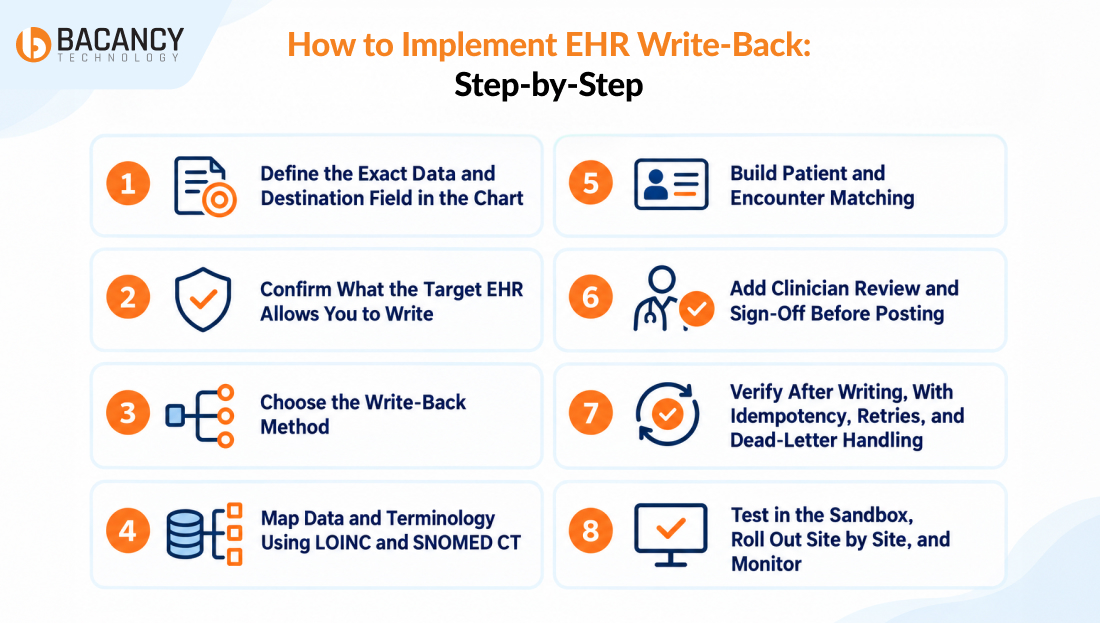
1. Define the Exact Data and Destination Field in the Chart
Select one task and one EHR system to get started. For example, the initial task can be to enter a pre-approved AI visit note in the Epic EHR system. Do not try to integrate with several EHRs at once.
2. Confirm What the Target EHR Allows You to Write
Check the developer documentation to see whether the EHR lets your app write the information you need. If FHIR does not support it, consider HL7 or the vendor's own API. Register your app and request only the write permissions it needs. Start vendor and health system approval now, not after the build.
3. Choose the Write-Back Method
Match the method to the data. Use FHIR when the resource is writable, HL7 when the hospital already runs interfaces, a document upload for notes and PDFs, and a unified API or RPA only when they fit the EHR mix.
4. Map Data and Terminology Using LOINC and SNOMED CT
Use standard codes so the EHR can use your data. LOINC identifies observations and documents, for example, 85354-9 for a blood pressure panel and 44261-6 for a PHQ-9 total score. SNOMED CT identifies conditions and allergies.
Note types, department codes, and flowsheet IDs differ from hospital to hospital. Keep them in configuration instead of hard-coding them, so adding another site doesn't mean rewriting the app.
5. Build Patient and Encounter Matching
Your app must send the data to the correct patient and, when needed, the correct encounter. Don't match on name and date of birth alone, because a wrong-patient write is the most serious error in write-back. Use the identifiers the EHR provides, and stop the write if the match isn't certain.
6. Add Clinician Review and Sign-Off Before Posting
Show the content to the clinician before it's saved to the EHR. They should be able to approve it, edit it, or reject it before it becomes part of the patient record. The security section below covers the extra sign-off rules for AI-generated content.
7. Verify, Retry, and Handle Failures
A write can fail because of a timeout, missing permission, invalid data, or EHR downtime.
Keep a record of every request and response.
8. Test in the Sandbox, Roll Out Site by Site, and Monitor
Test in the vendor's sandbox first, then in the health system's own test environment, which may have different note types and fields. Launch with a small group of clinicians. Track failed writes, rejected data, duplicates, and time saved per visit, then fix problems before expanding.
Need help building reliable EHR write-back without wrong-patient errors or duplicate records?
Hire EHR developers to build, test, and integrate write-back workflows that fit your EHR system.
EHR writeback problems often appear when you connect the app to a new health system. Most come down to incorrect data, different site settings, approval delays, or failed API requests.
Here are some common problems and simple ways to handle them.
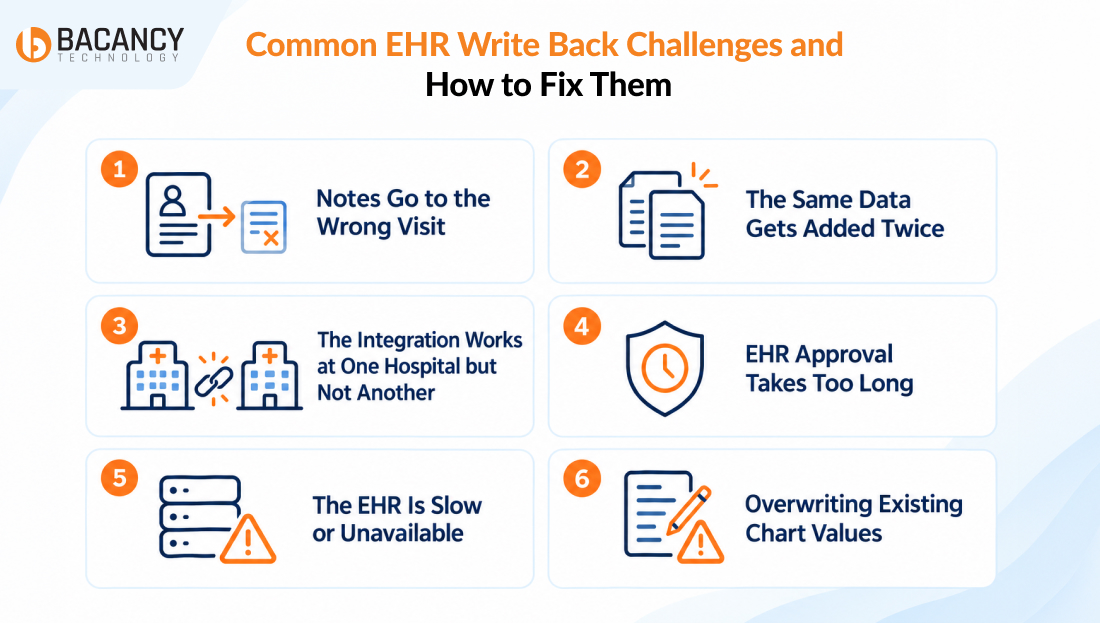
A patient may have more than one visit on the same day. If your app chooses the wrong encounter, the note can end up in the wrong place.
Use the encounter ID from the EHR whenever possible. If more than one visit is possible, show the selected visit to the clinician before saving the note.
A request can time out even though the EHR received it. If your app sends the request again, the same information may be added twice.
Give each write a unique ID and use it when you retry a failed request. This helps your system tell a new write from a retry.
Each health system sets up its own codes, fields, and note types. A note that lands in the right folder at one hospital can end up in a folder clinicians never check at another.
Keep a separate configuration for each site, including a map of its note types. Before going live at a new hospital, test every mapping with that site's team.
A write-back project can get delayed if the hospital does not have a clear person handling the approval.
Find the right contact early. Give the team a simple explanation of what your app writes, where it goes, and what permissions it needs. A basic data flow diagram can also make the review easier.
The EHR Is Slow or Unavailable
EHRs can have planned downtime, temporary problems, or limits on how many requests an app can send.
Keep failed writes in a queue instead of dropping them. Retry after a short delay and alert your team if a write stays pending for too long. Most importantly, make sure staff can see when a write has not reached the EHR.
An update can replace a value a clinician entered. Never let empty or stale inputs overwrite existing data. Check what is already in the chart before updating, write new values instead of replacing where possible, and log what changed.
EHR write back involves patient data, so your app needs proper HIPAA safeguards before sending information to the EHR.
In practice, this means:
Need help keeping your EHR writeback workflow secure and HIPAA-compliant?
Our HIPAA compliance services help you build the right safeguards into your healthcare app from the start.
The cost of EHR write back depends on the number of EHRs, the type of data, and the amount of testing and approval needed.
| Scope | Estimated cost (USD) | Development time | What drives the cost |
|---|---|---|---|
| Document-only write-back | $15,000 to $40,000 | 4 to 8 weeks | One EHR, one document type, and clinician review |
| Single-EHR FHIR write-back | $40,000 to $100,000 | 3 to 5 months | Data mapping, patient matching, testing, and vendor review |
| Multi-site bidirectional write-back | $150,000 to $400,000+ | 6 to 12 months | Site-specific mappings, HL7 interfaces, testing, and monitoring |
At Bacancy Technology, we provide EHR integration services to handle the technical work behind EHR writeback, from choosing the right integration method to testing the final workflow.
EHR write back helps healthcare apps send useful information back to the patient’s EHR. This can reduce manual data entry and make it easier for clinicians to use information from apps, AI tools, and remote monitoring systems.
The right approach depends on what you need to send and where it needs to appear in the EHR. A document may be enough for notes and summaries, while discrete write-back is useful when data needs to appear in specific fields or support an EHR workflow.
Start with a clear use case, check what the EHR supports, and involve the health system early. Any information added to the patient’s chart should also go through the right validation and clinician review. If you need help choosing the right write-back method for your use case and EHR, explore our healthcare interoperability services. Our team can help you plan the integration and map out the next steps.
Think of EHR write back as the return path between your app and the EHR. Your app may first read patient information from the EHR, such as demographics, medications, or lab results. After processing that information, the app can send something back into the patient's chart, such as a visit note, questionnaire result, vital sign, or report.
Sometimes. The answer depends on the EHR, the resource being updated, and the write operation available to your application. Some systems may allow new information to be added, while others may limit which existing records can be changed.
The basic difference is what your app is allowed to do with the patient record. With read access, the app can retrieve information that already exists in the EHR. With write access, the app can add or update information in the record.
It depends on the use case and how the healthcare organization handles patient data. Your integration should follow the organization's privacy, authorization, and consent requirements before sending information to the EHR.
Yes, but the same integration method may not work across every EHR. Epic, Oracle Health, athenahealth, and other systems can have different APIs, supported resources, and approval processes.
It can be, if the EHR supports the required data type and write operation. Teams should first decide whether the readings should be stored as structured observations, documents, or another supported record type.
Yes, depending on the EHR and the type of information you need to send. HL7 interfaces can handle write-back in many hospital environments, while document or PDF uploads can work when you only need to add a report or note to the chart.
You may need another supported interface or a different way to store the information. For example, a document-based workflow may work when a specific structured field cannot be written through the available API.
Yes. The EHR may reject a request when the data is invalid, the required field is missing, the resource is not supported, or the application does not have permission for that operation.
The integration should capture the error and record what happened. The team can then check the data, authentication, permissions, and API response before retrying the request.
Explore the 7 hidden costs of healthcare AI agents, including EHR integration, compliance, security, and maintenance, plus TCO and ROI.
Read More

Understand ONC Certified EHR and EMR requirements, certification status checks, 2026 changes, and how they affect healthcare providers and CTOs.
Read More
This guide covers 12 EMR security best practices that help healthcare organizations reduce the risk of data breaches, ransomware, and unauthorized access to patient records. It also explains key regulatory obligations and gives CIOs a practical 30-60-90 day plan for closing security gaps and improving incident readiness.
Read More
AI-First Engineers
Our engineers use AI agents and tools to build faster, then spend their time where it matters: reviewing code, closing technical gaps, catching security and performance risks, and testing every release. You work with AI engineers, AI product engineers and tech architects who own the quality of everything that delivers.

Embedded in Your Business
Our engineers work within your systems, data and security requirements, with overlapping hours for teams in the US, UK and Australia. Hire an individual Forward Deployed Engineer (FDE) or a dedicated FDE pod led by a named lead. We stay accountable for measurable outcomes until your solution runs reliably in production.

Built for Regulated AI
We build AI agents and agentic workflows primarily for healthcare and finance, integrating with EHRs, payer portals, banking systems and loan platforms. Our expertise spans data engineering, data warehousing and analytics, with human oversight, audit trails and HIPAA- and PCI DSS-aware controls. We also deliver solutions across other industries, backed by 1,050+ engineers and ISO/IEC 27001:2022 certification.